

How to Use VPN on iPhone: My Complete Setup Guide for 2026

Eneba Hub contains affiliate links, which means we may earn a small commission if you make a purchase through them—at no extra cost to you. Learn more
Installation is a matter of minutes, but learning how to use a VPN on an iPhone is a different story. It can take weeks or months, depending on the proficiency level you’re going for. You can either stick to the basic connect/disconnect action or go deeper with advanced tweaks and settings.
In this guide, I’ll show you how to set up a VPN on your iPhone, which protocols work best, and how to tweak from the most common use cases. I’ll also share some useful troubleshooting and safety tips. Keep reading to learn how to bulletproof your iPhone against outside snooping and unblock the internet, no matter where you live.
Jump to:
Why Use a VPN on Your iPhone?
Your iPhone goes everywhere with you, connecting to coffee shop WiFi, hotel networks, airport hotspots, and countless other access points you shouldn’t trust. Each connection is a potential exposure point for your data.
A VPN encrypts your internet traffic and routes it through secure servers, making it significantly harder for anyone to intercept what you’re doing online. This matters more on mobile than desktop because you’re constantly hopping between networks – many of which have questionable security at best.
Beyond security, there are practical benefits. Streaming services show different content libraries depending on your location. A VPN lets you appear to be somewhere else, unlocking shows and movies that aren’t available in your region. If you’re interested in accessing international streaming catalogs, a good streaming VPN can make a significant difference.
Price discrimination is another factor. Some services charge different rates based on your location. Flight prices, subscription costs, and even online shopping prices can vary by region. A VPN gives you the option to check prices from different virtual locations.
With that in mind, let’s learn how to set up a VPN on your iPhone.
Method 1: Using an iPhone VPN App (Easiest Approach)
The simplest way to use a VPN on iPhone is through a dedicated app. Most reputable VPN providers offer polished iOS apps that handle everything automatically. Here’s how to go about it:
Step 1: Choose and Download a VPN App
Open the App Store and search for your preferred VPN provider. NordVPN, Surfshark, and ExpressVPN all offer well-designed iPhone apps with one-tap connection features. If I had to pick, I’d choose Nord as your first VPN because it offers the best balance between speed, security, and user-friendliness.
Step 2: Create an Account or Sign In
After downloading, open the app and either create a new account or sign in with existing credentials. Most providers offer the same subscription across all your devices, so if you already have an account from desktop use, it works here too.
Step 3: Allow VPN Configuration
When you first connect, iOS will ask permission to add VPN configurations to your device. Tap “Allow” when prompted. This is a standard security measure – Apple wants you to explicitly approve any app that modifies network settings.
You’ll also see a prompt asking to allow notifications. This is optional but useful for knowing when your connection drops or reconnects.
Step 4: Connect to a Server
Most VPN apps feature a large connect button front and center. Tap it to connect to the fastest available server automatically. Alternatively, you can browse the server list and choose a specific location – useful when you need to appear in a particular country.
Once connected, you’ll see a small VPN icon in your iPhone’s status bar (top right corner, near the battery indicator). This confirms the VPN is active.
Step 5: Verify Your Connection
Open Safari and search “what is my IP” to confirm your connection is routed through the VPN. The IP address shown should match your VPN server country, not your actual location.
If you see your real location or IP address anywhere, it means your VPN is leaking data, and you should pick a better provider. During my testing with NordVPN, I never had a single data leak, which proves how serious Nord is about its routing quality.
Method 2: Manual IKEv2 Configuration
If you don’t want apps, or your VPN provider doesn’t offer one for iOS, you can configure the connection manually through iOS settings. This method uses the IKEv2 protocol, which Apple supports natively.
You’ll need the following information from your VPN provider: server address, remote ID, username, and password. Most providers publish this in their support documentation.
Step 1: Open Settings
Navigate to Settings > General > VPN & Device Management > VPN.
Step 2: Add VPN Configuration
Tap “Add VPN Configuration” at the top of the screen.
Step 3: Enter Connection Details
Select “IKEv2” as the type. Fill in the required fields:
- Description: A name you’ll recognize (e.g., “NordVPN US Server”)
- Server: The server address from your provider
- Remote ID: Usually the same as the server address
- Local ID: Leave blank unless specified
- User Authentication: Select “Username”
- Username: Your VPN account username
- Password: Your VPN account password
Step 4: Save and Connect
Tap “Done” to save the configuration. Back in the VPN menu, toggle the status switch to connect.
Manual configuration works, but it lacks the convenience of automatic server switching and kill switch features that apps provide. So, if you’re just starting out with VPNs, I recommend using apps and leaving manual tinkering to power users.
Method 3: Using Configuration Profiles
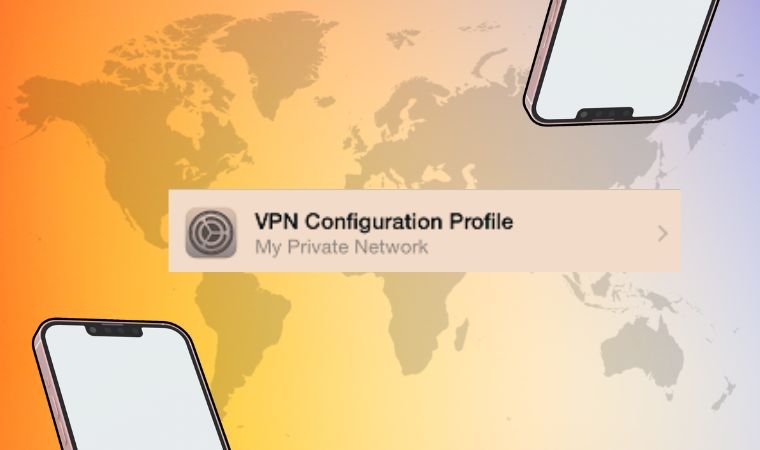
Some VPN providers offer downloadable configuration profiles that simplify manual setup. These .mobileconfig files contain all necessary settings pre-configured. Here’s what to do:
Step 1: Download the Profile
Visit your VPN provider’s website in Safari (on your iPhone) and navigate to their iOS setup page. Download the configuration profile for your preferred server.
Step 2: Install the Profile
After downloading, go to Settings > General > VPN & Device Management. You’ll see the downloaded profile listed under “Downloaded Profile.” Tap it and select “Install.”
Step 3: Enter Credentials
You may be prompted for your VPN username and password. Enter them and complete the installation.
Step 4: Trust the Profile
iOS may ask you to trust the certificate. Follow the prompts to complete the process.
Configuration profiles are especially useful when setting up OpenVPN connections, which iOS doesn’t support natively without additional software. Again, sticking with the app would be my advice unless you know exactly what you’re doing.
Choosing the Right VPN Protocol
Your VPN app likely offers multiple protocol options. Each has trade-offs between speed, security, and battery consumption.
- WireGuard is the modern choice – fast, efficient, and secure. It supports smooth network switching, which makes it great for mobile devices. When your iPhone jumps from WiFi to cellular, WireGuard reconnects almost instantly. This also makes it the best VPN protocol for gaming.
- IKEv2 is Apple’s native protocol and works well on iOS. It’s stable, reasonably fast, and handles network transitions smoothly. If you’re configuring manually without an app, this is your best option.
- OpenVPN is battle-tested and widely trusted, but requires a third-party app on iOS. It’s slightly slower than WireGuard but offers crazy configuration options for advanced users.
Surfshark and ExpressVPN both offer their own optimized protocols (Surfshark uses WireGuard by default, ExpressVPN uses Lightway) that balance speed and security automatically. Surfshark wins on pure value, though, since it supports unlimited simultaneous connections. You can cover all the devices in your home for under $2 per month.
Optimizing VPN Performance on iPhone
A VPN inevitably adds some overhead to your connection, but proper optimization minimizes the impact. Here are my tips to keep the speed drops, ping spikes, and battery consumption to a minimum:
- Choose nearby servers. Distance matters. Connecting to a server on another continent adds latency that you’ll feel in everything from web browsing to video calls. Unless you specifically need a foreign IP address, stick with servers in or near your country.
- Use split tunneling when available. Some VPN apps let you exclude specific apps from the VPN tunnel. This is useful for banking apps (which sometimes flag VPN connections as suspicious) or services that work fine without protection. Not all iOS VPN apps support this feature due to Apple’s restrictions, but check your app’s settings.
- Enable auto-connect. Configure your VPN to connect automatically when joining untrusted networks. Most apps offer this feature – it ensures you’re never accidentally unprotected on public WiFi. Auto-connect will also find the optimal server based on your location.
- Monitor battery impact. VPNs do consume additional battery because they’re constantly encrypting traffic. WireGuard is the most efficient protocol for battery life. If you notice significant drain, check that your app is using an efficient protocol.
Using VPN for Streaming on iPhone
Streaming services are one of the most common reasons people use VPNs on mobile. Netflix, Disney+, BBC iPlayer, and others all have different content libraries, depending on your location.
To access geo-restricted content, connect to a server in the country whose library you want to access. US Netflix has different shows than UK Netflix, for example. Connect to a US server, and the app sees you as a US user.
Not all VPNs work reliably with streaming services, though. Netflix and others actively block VPN IP addresses, so you need a provider that constantly refreshes its server infrastructure to stay ahead. NordVPN and ExpressVPN consistently perform well for streaming.
For watching UK-specific content like BBC iPlayer or ITV from abroad, you’ll want a VPN with strong British server coverage. The process is the same – connect to a UK server before opening the streaming app.
VPN for Gaming on iPhone
Mobile gaming has exploded, and many competitive titles benefit from VPN use. Whether you’re playing PUBG Mobile, Genshin Impact, or Mobile Legends, a VPN can help in several ways.
First, it can reduce ping if your ISP routes gaming traffic inefficiently. A VPN provides an alternative path that might actually be faster. This isn’t guaranteed – it depends on your specific ISP and location – but it’s worth testing.
Second, it protects against DDoS attacks. Competitive mobile gamers, especially streamers, can be targeted by opponents trying to knock them offline. A VPN hides your real IP address, making such attacks much harder to execute. If you want to avoid these attacks reliably, check my favorite VPNs for DDoS protection.
Third, some games have region-locked servers or content. A VPN lets you access different regional servers or events that might not be available in your area.
For the smoothest gaming experience, connect to a server geographically close to the game’s servers, use WireGuard protocol, and ensure your connection is stable before entering competitive matches.
Troubleshooting Common Issues
Like with any app, you might experience some issues with your iPhone VPN. Here’s what usually happens and what to do:
- VPN won’t connect: Check your internet connection first – the VPN can’t work if you’re not online. If that’s fine, try switching servers or protocols. Sometimes specific servers are temporarily down or overloaded.
- Slow speeds while connected: Try a different server, preferably one closer to your location. Switch protocols if available – WireGuard typically offers the best speeds. If you’re on cellular data, congestion on your carrier’s network might be the bottleneck rather than the VPN.
- Apps not working with VPN: Some apps, particularly banking and payment apps, block VPN connections. If an app refuses to work, check if your VPN offers split tunneling to exclude that specific app. Otherwise, you’ll need to temporarily disconnect.
- VPN disconnects frequently: This usually indicates network instability. Enable your VPN’s kill switch feature to ensure traffic stops completely if the connection drops. Also check that iOS isn’t killing the VPN app in the background – go to Settings > General > Background App Refresh and ensure your VPN app is enabled.
- Netflix or streaming service blocked: Streaming services actively detect and block VPN connections. Try different servers within the same country – some IPs are blocked while others work fine. If problems persist, contact your VPN’s support; they can often suggest specific servers optimized for streaming. My guide on the best VPN for BBC iPlayer offers some reliable options for this service.
Best Security Practices for an iPhone VPN
Getting the VPN running is step one. Using it effectively requires attention to a few additional details.
- Enable the kill switch. This feature cuts your internet connection entirely if the VPN drops unexpectedly, preventing data from leaking over an unprotected connection. Most quality VPN apps include this – make sure it’s turned on.
- Use trusted VPN providers. Free VPNs are tempting but often monetize by selling your data – the opposite of what you want from a privacy tool. Stick with established providers that have been independently audited. The safest VPNs have published audit results confirming their no-logs policies.
- Keep your app updated. VPN apps receive security patches and performance improvements regularly. Enable automatic updates or check manually to make sure you’re running the latest version.
- Verify the connection. Periodically check that your VPN is actually active, especially after network changes. The VPN icon in the status bar confirms active connections, but an IP lookup provides additional verification.
VPN on iPhone vs. Other Devices
Setting up a VPN on iPhone is generally easier than on other platforms due to iOS’s streamlined approach. However, there are some limitations to be aware of.
iOS restricts what VPN apps can do compared to desktop or Android versions. Split tunneling, for instance, isn’t available on all iOS VPN apps because Apple limits how apps can interact with network traffic. Some features you might be used to on other devices may be missing or work differently on your iPhone.
If you’re looking to protect multiple devices under one subscription, most premium VPN providers allow simultaneous connections across platforms. Best VPNs for multiple devices cover your iPhone, iPad, Mac, and other gadgets under a single account.
For gaming consoles and smart TVs that don’t support VPN apps directly, you can set up the VPN on your router instead, which then automatically protects all connected devices, including your iPhone. Knowing how to turn off VPN is also helpful.
When to Use a VPN on Your iPhone
You don’t necessarily need your VPN running 24/7, though some users prefer that approach. At a minimum, enable it in these situations:
- Public WiFi – Coffee shops, airports, hotels, and any other network you don’t control. These are prime targets for man-in-the-middle attacks and packet sniffing.
- Traveling abroad – Access your home country’s streaming content and protect yourself on unfamiliar networks. VPNs are also essential if you’re visiting countries with internet censorship. If you’re traveling to China, by any chance, check my list of the best VPNs for China that’ll help you unblock numerous services and platforms there.
- Sensitive transactions – Banking, shopping, or anything involving personal information. Even on your home network, added encryption doesn’t hurt.
- When privacy matters – If you’d rather your ISP not log every website you visit, a VPN prevents that tracking.
Protect Your iPhone With a Solid VPN
Using a VPN on iPhone is one of the simplest yet most effective steps you can take for mobile security. The app-based setup takes minutes, works reliably, and provides meaningful protection without requiring technical expertise.
For most users, downloading a trusted VPN app and tapping connect is all that’s needed. The VPN handles encryption, server selection, and connection management automatically. Advanced users can explore manual configuration, but the apps have matured to the point where that’s rarely necessary.
Pick any provider from my list of the best VPNs, install the app, and get protected. Your iPhone’s security is worth the few minutes of setup time.
FAQs
Yes, in most countries. VPNs are legal tools for privacy and security. However, some countries restrict or ban VPN use, so check local laws if you’re traveling to places like China, Russia, or the UAE.
Somewhat, yes. The encryption process requires additional processing power. Modern protocols like WireGuard minimize this impact, but you’ll notice slightly higher battery consumption compared to browsing without a VPN.
You can, but it’s generally not recommended. Free VPNs often have data caps, slower speeds, and questionable privacy practices. Many monetize by collecting and selling user data. If cost is a concern, look for affordable paid options rather than free services.
Yes, there’s always some speed reduction due to encryption overhead and routing through VPN servers. With quality providers and nearby servers, this reduction is typically 10-20% – often unnoticeable for regular browsing. Choosing efficient protocols like WireGuard minimizes the impact.
No. iCloud Private Relay only works with Safari browsing traffic. A VPN protects all internet traffic from all apps on your device. They serve different purposes, and Private Relay doesn’t offer the geographic flexibility or comprehensive protection that VPNs provide.