


How to Use Steam Link: Stream Your PC Games Anywhere


When I first discovered Steam Link, the idea of streaming my entire PC library to any room felt like magic. If you’ve been curious about how to use Steam Link, this guide will show you everything you need to know. Steam Link is a technology from Valve that sends video and audio from your gaming computer to other devices while returning your controller or mouse inputs with minimal delay. It works through the Steam client using real‑time video encoding and a custom low‑latency network protocol that makes your games feel responsive on remote screens. If you want to play on a TV, another PC, your phone, or even a VR headset, the core experience is the same: the game runs on your primary PC while you enjoy it elsewhere.
Jump to:
How to Use Steam Link: What It Is & Why Gamers Love It
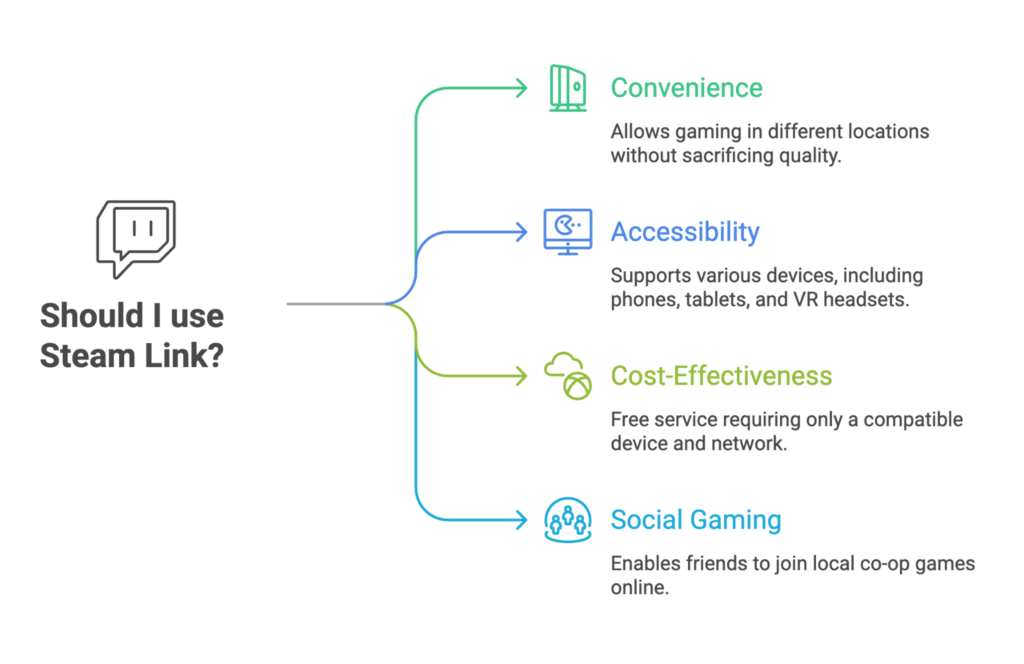
Steam Link is a way to extend your PC gaming to different devices without sacrificing quality. Video and audio signals are encoded on your gaming PC and sent over your local network to a secondary device, while inputs travel back almost instantly. The result is real‑time streaming that feels like you’re still sitting at your desk.
I’ve used it to pick up games in the living room after long work sessions, and the convenience cannot be overstated. The technology supports phones, tablets, TVs, laptops, and even Meta Quest headsets. Remote Play Together also enables friends to join local co‑op games online by sharing the same stream. If you’re interested in taking your games on the go, check out our review of portable powerhouses in our handheld gaming PCs guide, where we discuss devices that pair well with Steam Link.
Steam Link uses the same Steam account on both devices, so your full library is available wherever you connect. Your secondary device doesn’t need to be powerful; even a lightweight laptop or tablet can display high‑end PC games when they’re being rendered elsewhere.
And because the service is free, all you need is a compatible device and a decent network connection. Many gamers love this feature because it keeps them from being tied to one room, making gaming more flexible and social.
System Requirements and Network Setup for Steam Link
Before you start streaming, ensure your system meets the requirements. Your host computer must be running Steam on Windows 7 or newer, macOS 10.10 or newer, SteamOS, or Linux Ubuntu 12.04 or newer. You should also have a display capable of 720p or 1080p resolution and a controller, mouse, or keyboard.
A quad‑core CPU is recommended on the host machine, but the client device’s needs are modest; it just needs hardware‑accelerated H.264 decoding, which most modern phones, tablets, and laptops support. For the smoothest experience, connect both the host and receiving device to the same router.
Valve recommends a wired Ethernet connection for at least one side of the connection because cables provide more bandwidth and lower latency than Wi‑Fi. If you must go wireless, use a 5 GHz network with a strong signal and keep your router near both devices.
During setup, avoid starting other downloads on your network as they can cause lag. If you’re on Wi‑Fi, reduce interference by turning off other wireless devices and keeping walls or obstructions between your router and devices to a minimum. Steam’s Remote Play settings allow you to cap bandwidth, adjust resolution, and prioritize speed over quality if your connection is inconsistent.
For gamers who love playing on the couch, a good dock can help manage cables and provide Ethernet ports. Our guide to Steam Deck docks highlights docks with extra USB‑C, HDMI, and Ethernet connections that also work well for PC streaming setups.
Setting Up Steam Link on Your TV, Monitor, or Another PC
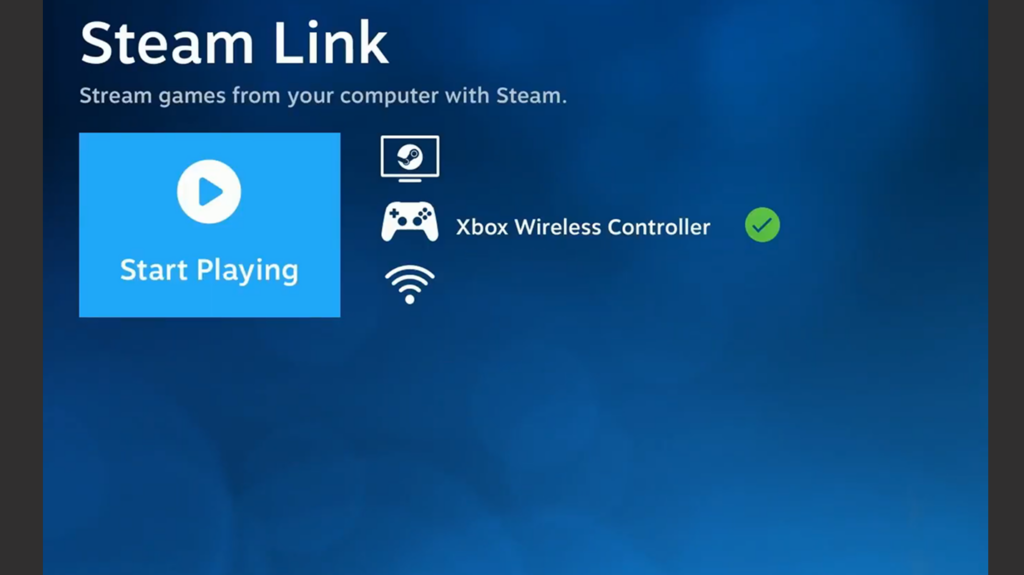
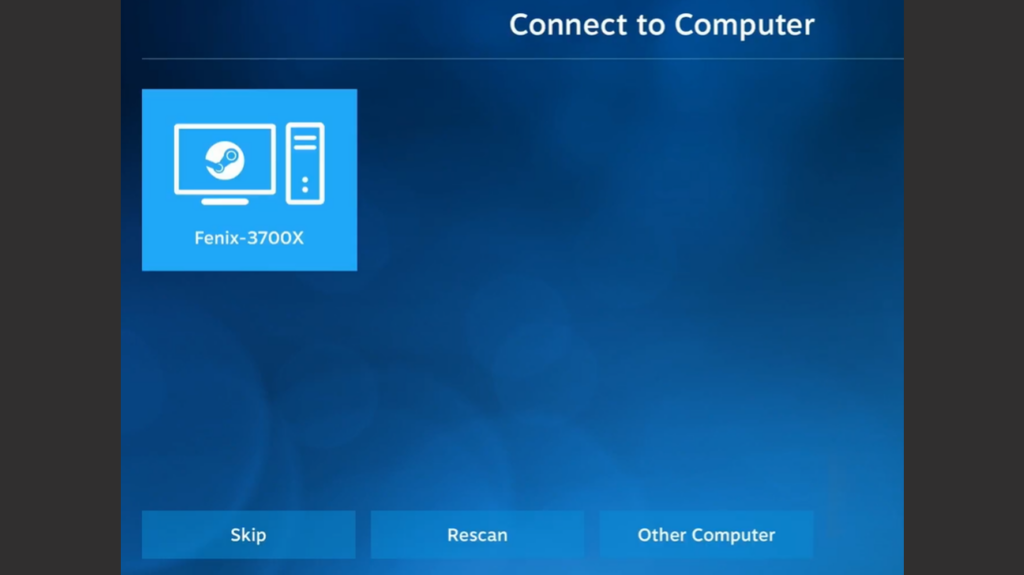
If you own Valve’s dedicated Steam Link hardware or want to stream from one PC to another, the process is straightforward. Turn on your gaming PC, launch the Steam client, and log in. Connect the Steam Link hardware to your TV or monitor using HDMI, power it on, and use an Ethernet cable or Wi‑Fi to connect it to your home network.
Plug a controller, mouse, or keyboard into one of the USB ports and follow the on‑screen instructions. The device will search for computers running Steam on your network. Select your PC and enter the code shown on the TV screen if prompted. Once paired, your library appears, and you can start streaming games to the big screen. I often use this setup in the living room with a wireless controller, and the experience feels native, with no noticeable input lag.
For PC‑to‑PC streaming, log in to Steam on both systems. On the host machine, launch the game you wish to play. On the client machine, open your Steam library and select the game you want. Instead of a Play button, you’ll see a Stream button. Click it, and the game will launch on the host PC while streaming to your client. This feature is perfect for playing Windows‑only games on Linux machines or low‑powered laptops. Because Steam Link mirrors the host’s screen, your primary PC remains locked to the game window, so avoid using it for other tasks during streaming.
If you’re looking for new adventures to enjoy from your couch, explore our list of best Steam Deck games for ideas; these titles play beautifully over Remote Play.
Using the Steam Link App on Mobile and Other Devices
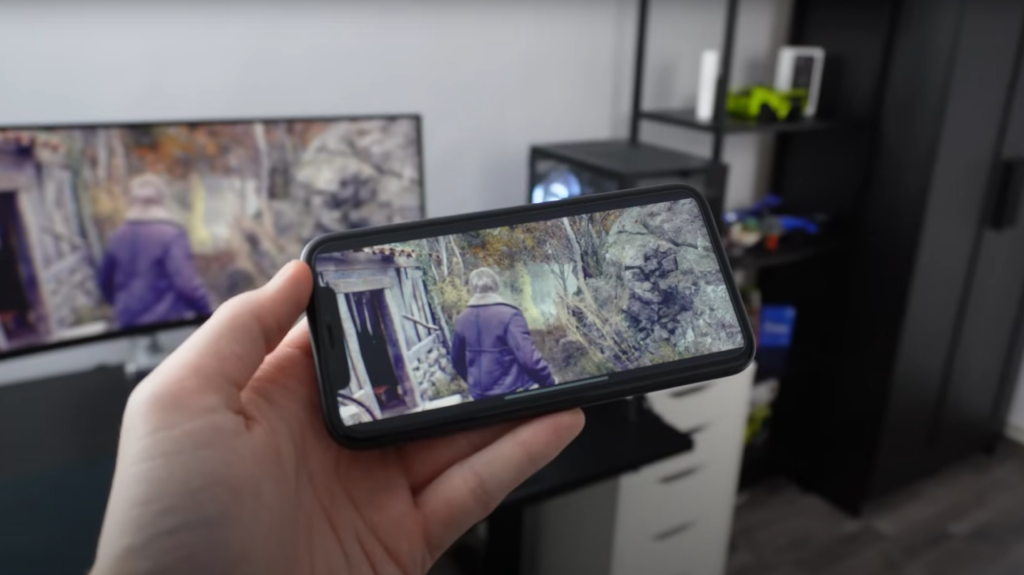
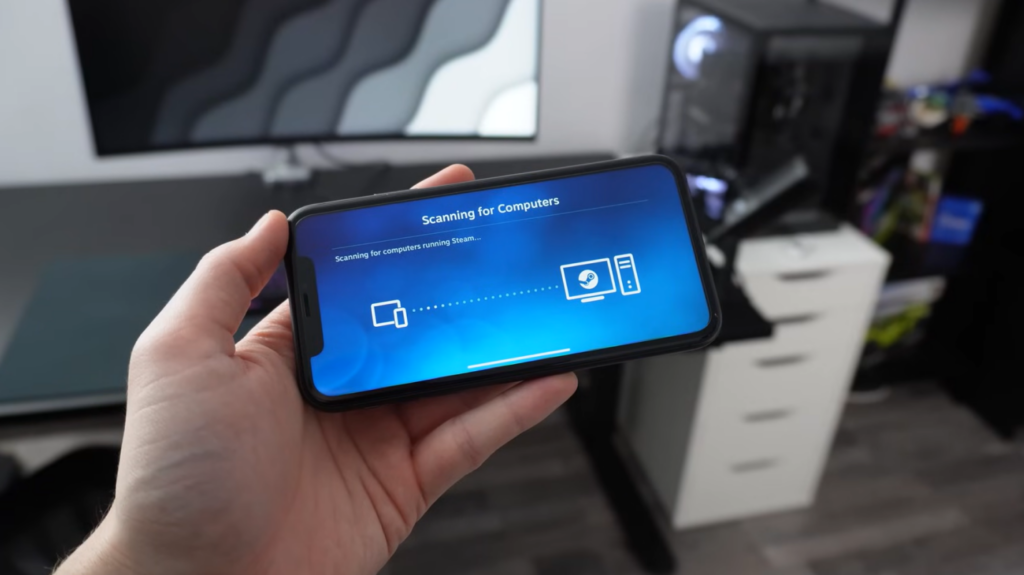
The Steam Link mobile app brings PC gaming to your phone, tablet, or smart TV with just a few taps. To get started, turn on your PC, launch Steam, and log in. Ensure your mobile device is connected to the same network as your computer. Download the Steam Link app from Google Play or the Apple App Store and follow the on‑screen pairing instructions. The app will search for computers running Steam.
Select your PC and enter the provided code when prompted. Once paired, you can choose to use on‑screen touch controls or connect a Bluetooth controller. Officially supported controllers include the Steam Controller, Microsoft Xbox controllers, Sony DualShock 4, Razer Kishi, and others. If you’re playing on a tablet or phone stand, using a Bluetooth controller can make the experience much more enjoyable.
The Steam Link app also works with some smart TVs, Raspberry Pi devices, and VR headsets. Meta Quest users can install the app through the Meta Quest Store to stream VR games from their PC. Minimum requirements include a Windows 10 PC with a supported GPU like an NVIDIA GTX 970 or better and a 5 GHz wireless router.
Using an Ethernet cable between your PC and router is still recommended, even if the headset connects wirelessly. When streaming to mobile devices away from your home network, Steam Link will try to tunnel through the internet. This works best when the host PC has a fast upload speed, and the client has a stable connection.
Personal experience has shown that remote play over the internet can introduce additional latency, but it’s impressive how playable it remains for slower‑paced games. For tips on improving your portable setup, our Steam Deck accessories guide covers controllers and grips that also work with phones and tablets.
Advanced Features: Remote Play Together, VR, and Beyond
Steam Link actually offers more than solo streaming. Remote Play Together lets you share local multiplayer games with friends over the internet. To use it, launch a game that supports local co‑op, have your friend log into Steam on any supported device, and open the Steam Overlay by pressing Shift + Tab.
From your friends list, right‑click on their name and choose “Remote Play Together.” They’ll receive an invite; once accepted, the game streams to their device. Each player uses their own controller or keyboard, and the host PC handles the rendering. This is perfect for co‑operative games that don’t have built‑in online multiplayer.
Steam Link also supports PC‑to‑VR streaming. On a Meta Quest headset, install the Steam Link app, ensure your PC meets the recommended specifications, and pair the headset with your computer over the same network.
Once connected, launch SteamVR on your PC and put on your headset. You’ll see your SteamVR home environment and can launch any VR game from your library. The video and audio are streamed to the headset, while your motion controller inputs go back to the PC.
This setup allows you to experience high‑fidelity VR without being tethered to your computer. If you’re exploring immersive worlds, our PC VR games roundup highlights titles that shine when streamed through Steam Link.
Remote Play Anywhere extends streaming beyond your local network. Log into Steam on your gaming PC, then log into Steam on another PC or device with the Steam Link app installed. From the library on the remote device, click Stream, and the game will launch and play remotely.
The internet connection determines performance, so choose a wired connection for your host PC and a stable, high‑bandwidth connection on the client side. Keep in mind that uploading video from your PC requires sufficient upload bandwidth; slower connections may produce artifacts or lag.
Tips for the Best Steam Link Streaming Experience
To get the most out of Steam Link, start with a strong network foundation. Whenever possible, use a wired Ethernet connection between your host PC and router. If your secondary device supports Ethernet, such as a laptop or docked handheld, connect it directly as well. If wireless is your only option, connect to a 5 GHz Wi‑Fi network and position your router centrally.
Use channels with minimal interference and avoid crowded frequencies. Hardware matters too: update your graphics drivers to ensure hardware encoding works correctly. On the host PC, a quad‑core CPU helps encode video smoothly, and a GPU that supports H.264 or HEVC encoding reduces latency.
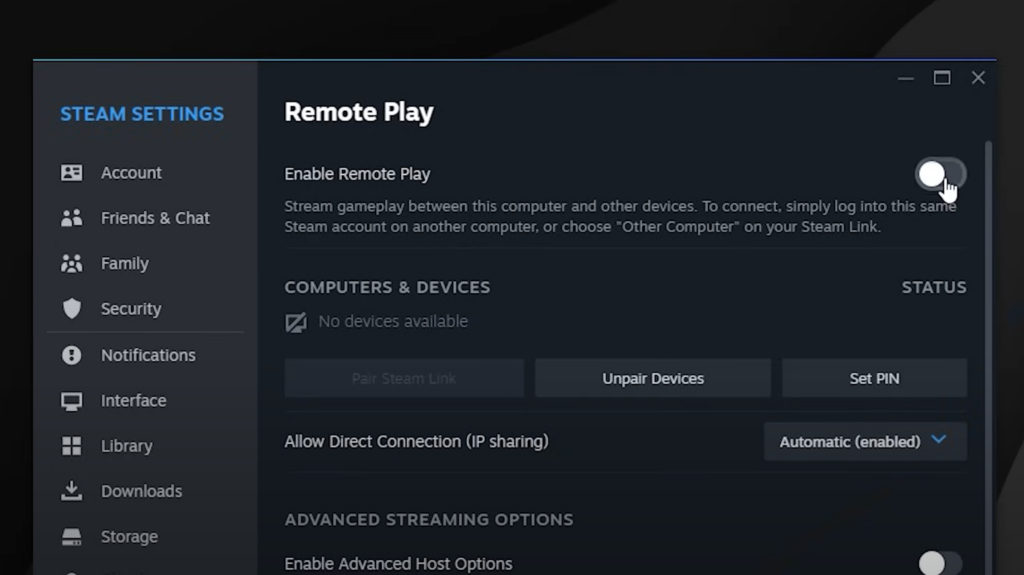
Adjusting settings in Steam can make a significant difference. In Steam’s Remote Play settings, you can choose between “Fast,” “Balanced,” and “Beautiful” modes. Fast mode reduces resolution and quality but minimizes lag, while Beautiful emphasizes image quality at the cost of latency.
You can also limit bandwidth, set maximum streaming resolution, and choose whether to use hardware encoding. I’ve found that lowering resolution slightly can dramatically improve responsiveness on slower networks. Keep your host PC free of heavy background tasks, close other applications, and ensure Windows power settings are set to high performance.
When using controllers, wired connections are the most reliable. If you prefer wireless, pair your controller to the host PC or the client device via Bluetooth before launching the stream. Some controllers can connect directly to the Steam Link hardware; others pair through the host’s Bluetooth.
If you’re streaming on mobile, enable Do Not Disturb to avoid interruptions from calls or notifications. Finally, remember that some games may require adjusting in‑game settings (such as resolution or v‑sync) to reduce encoding load. Through experimentation, you’ll find the balance of quality and performance that suits your connection and preferences.
Level Up Your Setup With Steam Link
Steam Link makes it possible to enjoy your Steam library across devices without sacrificing quality. Make sure to understand how to use Steam Link, set up your network correctly, and explore advanced features like Remote Play Together and VR streaming, so you can tailor the experience to your needs. If you’re streaming to a TV for couch co‑op, to a phone for convenience, or to a headset for immersive VR, the technology is flexible and accessible. If you’re ready to expand your game collection, a Steam Gift Card from our store is a convenient way to top up your wallet and dive into more titles.
FAQs
Can I use Steam Link away from my home network?
Yes, you can use Steam Link away from your home network, but performance depends on your internet speeds and stability. Remote Play Anywhere lets you log into Steam on a second device over the internet, and as long as your host PC has a fast upload speed and your client has a reliable connection, you can stream games. Expect higher latency than in‑home streaming, so slower or turn‑based games tend to work best.
Is Steam Link free to use?
Yes, Steam Link is free to use and available on multiple platforms through the Steam Link app or dedicated hardware. You’ll need a Steam account and a device capable of running the app, but there is no separate fee for streaming your games. The only costs involve purchasing compatible controllers or accessories if you choose to enhance your setup.
Does Steam Link require a powerful PC?
No, Steam Link does not require a powerful PC on the receiving end, but your host computer should meet certain specifications. A gaming PC with a quad‑core processor and a GPU capable of hardware video encoding will ensure smooth streaming. The client device can be a low‑powered laptop, tablet, phone, or smart TV, as it mainly decodes the video stream.
How do I connect a controller to Steam Link?
To connect a controller to Steam Link, plug a compatible controller into the USB port of the Steam Link hardware or pair it via Bluetooth on your client device before starting a stream. Supported controllers include the Steam Controller, Xbox and PlayStation gamepads, and many third‑party options. Once paired, launch Steam Link and select your PC; the controller should work automatically within games.
What devices support the Steam Link app?
The devices that support the Steam Link app include Android phones and tablets, iOS devices, Apple TV, Raspberry Pi, Windows, Linux, macOS computers, Meta Quest headsets, and many smart TVs. Simply download the app from the appropriate app store, ensure your device is on a compatible network, and follow the pairing instructions to start streaming.